- Game Screen -
Menu
| Game Panel | Status Screen | Magic Screen |
| Item Screen | Game Menu | Map Screen |
| Special Items Screen |
Color Change Palette |
Game Panel
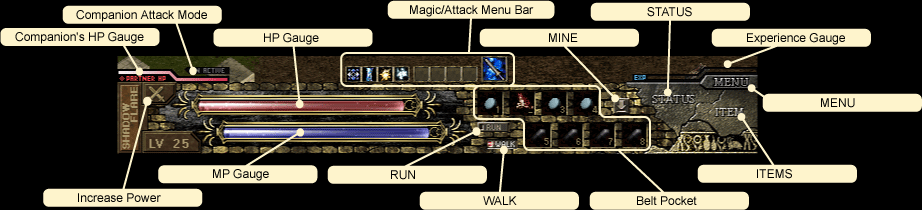
| HP Gauge | Indicates player's hit points/strength. HP is reduced each time the player is attacked. When HP becomes 0, the player dies. |
| MP Gauge | Indicates magic power. When the player uses magic, MP decreases. Once it becomes 0, the player cannot use magic anymore. |
| Belt Pocket | Put certain items in it like tablets or capsules to recover HP and MP. A Belt Pocket item can be used by right-clicking on it or pushing keyboard keys 1 through 8. |
| RUN | Click this button to set 'Run' as the default form of movement. |
| WALK | Click this button to set 'Walk' as the default form of movement. |
| MINE | Click this button to lay a land mine on the ground. |
| STATUS | Open/close the Status screen. |
| ITEM | Open/close the Item screen. |
| MENU | Open/close the Game Menu screen. |
| Magic/Attack Menu Bar | Choose a magic or attack to be assigned to the right mouse button. Select an icon and left-click it. |
| Companion's HP Gauge | Indicates companion's strength/hit points. HP is reduced each time the companion is attacked. When HP becomes 0, the companion dies. (Shown as PARTNER HP in a game screen) |
| Companion Attack Mode | When the companion attack mode is ACTIVE, player's companion attacks enemies independently. If the mode is INACTIVE, the companion strictly follows player instructions and just follows otherwise. |
| Increase Power | If a player clicks this button when it's blinking, the player can increase his/her power. Increased power mode will last for a short period of time. |
| Experience Gauge | The more enemies defeated, the more this gauge is filled. Once it becomes full, the player's status level will increase to the next level. |
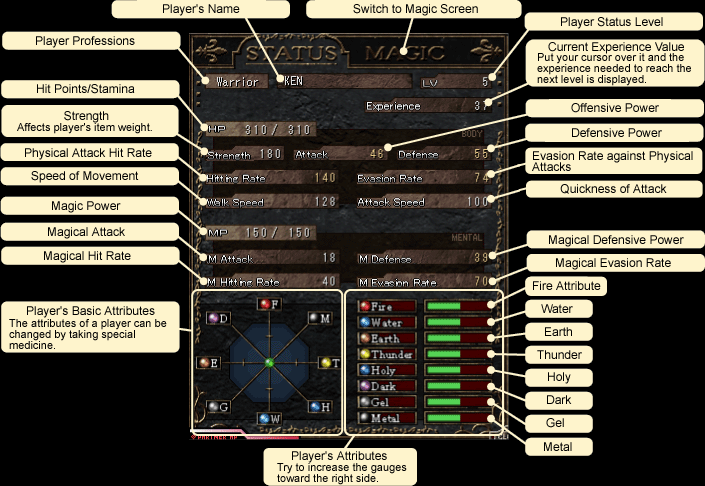
STATUS
This screen allows a player to check his/her status levels.
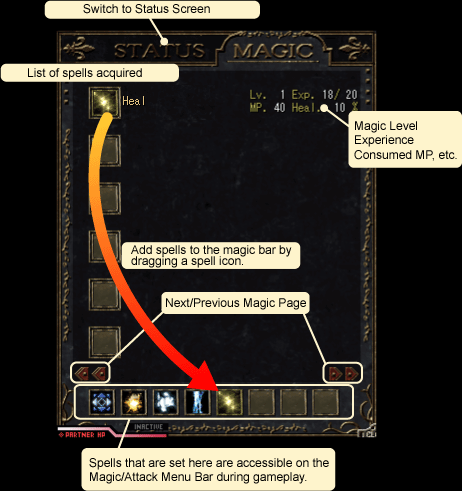
MAGIC
This screen shows the spells that a player has learned.
A player can also assign magic spells to the Magic/Attack Menu bar.
ITEM
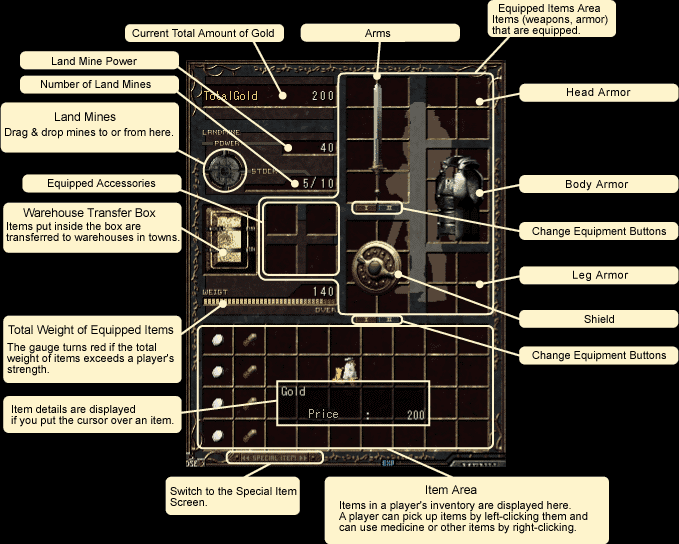
This screen shows items that are in the player's inventory.
To equip armor and weapons, move an item to the appropriate body part or space in the
Item screen and left-click.
You can transfer your items to warehouses in towns through the Warehouse Transfer
Box icon if you are running
out of space in your inventory.
Settings Menu
This is the settings screen. You can set various game parameters here.
This screen also gives you information about the game in progress.
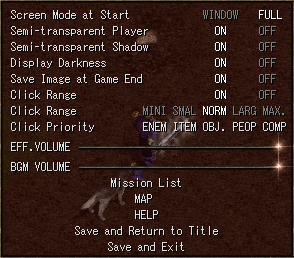
| Screen Mode at Start | WINDOW | This sets the game window to a smaller window size so that the MS Windows environment is visible. Exit and restart the game to see the changes. |
| FULL | This sets the game to full screen. Exit and restart the game to see the changes. | |
| Semi-transparent Objects | ON | This mode makes obstructions semi-transparent, which is useful when a player hides behind obstructions like a wall. |
| OFF | A player is not visible when behind obstructions. *This mode speeds up CPU game processing and increases the speed of the game. |
|
| Semi-transparent Shadow | ON | Shadows of objects are transparent and can be seen through. |
| OFF | All shadows are black and non-transparent. *This mode increases the speed of the game. |
|
| Display Darkness | ON | Dungeons, ruins, and towers are dark and unlit. Only the area immediately surrounding the player can be seen. |
| OFF | The entire game playing screen in a dungeon, ruin, or tower is lit. *This mode increases the speed of the game. |
|
| Save Image at Game End | ON | The game records a picture to appear on the Load Game screen the next time the game is played. The image is saved automatically when the user quits. |
| OFF | Pushing the Pause key allows you to capture a game image while playing the game. | |
| Click Range | ON | When a mouse button is clicked, all objects within a square range are selected. |
| OFF | Show only the mouse cursor and have only the cursor range. | |
| Click Range | Resize the square click area. | |
| Click Priority | Select the priority of clicking when items and enemies overlap each other. Priority is from left to right. (ENEM=Enemies / OBJ=Objects / PEOP=People / COMP=Companion) |
|
| Mission List | Show all missions and mission status (cleared or unfinished). | |
| MAP | Shows nearby areas where the player has been through an overhead perspective. Also show other players' positions in online mode. (Available in Episode 2 and later) |
|
| HELP | Check shortcut keys and mouse controls. | |
| Save and Return to Title | Save the current game to the player file and return to the Title screen. | |
| Save and Exit | Save the current game to the player file and exit the game. | |
MAP
The map shows nearby areas where the player has been through an overhead perspective.
It also shows the player's current location. (Available in version 1.002.000
and later)
In version 1.004.000 and later, the map is half the size of the game screen.
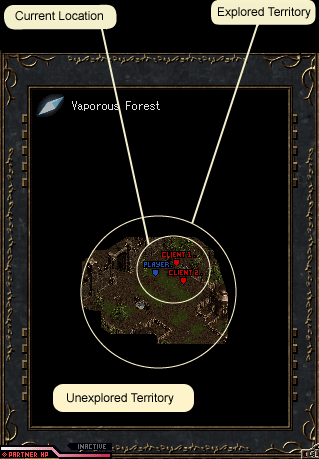
Arrow keys allow you to scroll up and down within the map.
Pressing Enter returns the map to its original location before scrolling.
SPECIAL ITEMS
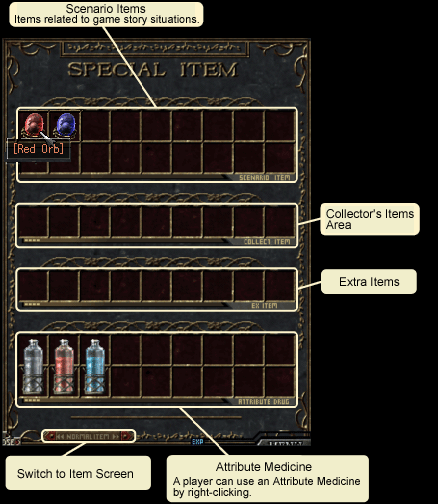
This screen shows special items that the player has received.
Only Attribute Medicine (Available in Episode 3 and later) can be used by right-clicking.
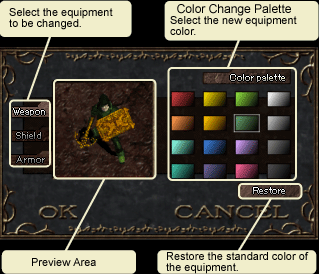
Color Change Palette
Players can change the colors of armor and weapons with the color palette.
To change colors, the player needs to ask a special merchant to do so. (Available
in Episode 3 and later)